Cloud Data Backup Explained for Beginners (Complete Guide for 2024)
Average reading time: 17 minute(s)
Losing your business data is one of the worst things that can happen to you as a small business owner. One day everything is fine, and the next your hard drive crashes, ransomware locks your files, or someone accidentally deletes a year’s worth of customer records. Cloud data backup exists to make sure that never becomes a disaster you can’t recover from.
This guide walks you through everything you need to know, even if you’ve never set up a backup system before.
What Is Cloud Data Backup and How Does It Work
Cloud data backup is the process of copying your files, databases, and system data to secure servers hosted on the internet. Instead of saving a second copy of your files on a USB drive sitting in your desk drawer, your data gets sent over the internet to a remote data center.
Here’s a simple breakdown of how it works step by step.
- You install a backup agent or app on your computer, server, or phone
- The software scans your files and identifies what needs to be backed up
- Your data gets compressed and encrypted before it leaves your device
- The encrypted data travels over the internet to the provider’s servers
- The provider stores your data across multiple physical locations
- If you ever need to restore files, you log in and download them back
Most modern backup services run automatically in the background. You set a schedule, such as every night at 2am, and the software does its job without you having to think about it.
The Difference Between Backup and Sync
A lot of beginners confuse cloud sync services like Dropbox or Google Drive with actual cloud data backup. They are not the same thing. Sync services mirror your files, meaning if you accidentally delete something, that deletion syncs everywhere and your file is gone. A true backup service keeps historical versions of your files so you can go back in time and restore what you need.
Local Backup vs Cloud Storage Backup
Before cloud storage backup became affordable, businesses relied entirely on local backup methods. Both approaches have merit, and many experts recommend using both together.
Local Backup Options
- External hard drives
- USB flash drives
- Network attached storage (NAS) devices
- On site tape backup systems
- Spare internal hard drives
Cloud Storage Backup Options
- Dedicated cloud backup services like Backblaze or Acronis
- Cloud platforms like Microsoft Azure Backup or AWS Backup
- Hybrid systems that use both local and cloud storage
Head to Head Comparison
| Feature | Local Backup | Cloud Storage Backup |
|---|---|---|
| Speed of backup | Very fast | Depends on internet speed |
| Speed of restore | Very fast | Can be slow for large files |
| Cost upfront | High (hardware) | Low monthly fee |
| Cost long term | Low after hardware purchase | Ongoing subscription |
| Protection from fire or flood | No | Yes |
| Protection from ransomware | Sometimes | Yes, if versioned |
| Requires physical management | Yes | No |
| Accessible from anywhere | No | Yes |
| Automatic scheduling | Yes | Yes |
| Scalable storage | Limited | Virtually unlimited |
The classic advice in the backup world is the 3-2-1 rule. Keep 3 copies of your data, on 2 different storage types, with 1 copy stored offsite. Cloud data backup is the perfect solution for that offsite copy.
Why Remote Data Protection Matters for Small Businesses
Small businesses are actually more vulnerable to data loss than large enterprises. Big corporations have IT departments, redundant systems, and disaster recovery teams. Most small business owners are managing everything themselves.
Remote data protection means your data lives somewhere physically separate from your office. If your building floods, burns down, or gets broken into, your data is still safe and accessible from anywhere with an internet connection.
I spoke with a restaurant owner in Austin who lost every computer in a kitchen fire back in 2019. Her POS system, staff schedules, vendor contracts, and customer loyalty data were all stored locally. Recovery took three months and cost her over $40,000 in lost revenue and recovery fees. She told me the worst part was not the money. It was the feeling of starting over from scratch.
Remote data protection would have cost her less than $30 per month.
What Remote Data Protection Actually Covers
- Office computers and laptops
- Business servers
- Mobile devices
- Email archives
- Databases
- Cloud-hosted applications
- Virtual machines
How SaaS Backup Protects Your Business Apps
This is where a lot of small business owners get caught off guard. You might think that because you use Microsoft 365, Google Workspace, or Salesforce, your data is automatically backed up. It is not.
SaaS stands for Software as a Service. These are the apps you pay a monthly subscription for and access through a browser. Microsoft, Google, and Salesforce do protect their infrastructure from going down, but they are not responsible for your data if you accidentally delete it, a disgruntled employee wipes records, or malware corrupts your files.
This concept is called the shared responsibility model. The vendor keeps the platform running. You are responsible for your own data.
Common SaaS Apps That Need Separate Backup
- Microsoft 365 (Outlook, Teams, SharePoint, OneDrive)
- Google Workspace (Gmail, Google Drive, Calendar, Contacts)
- Salesforce and other CRM platforms
- QuickBooks Online
- Slack
- Zendesk
- HubSpot
What SaaS Backup Actually Does
SaaS backup tools connect to these applications using their official APIs. They take regular snapshots of your data, emails, contacts, calendar events, documents, and records. If something gets deleted or corrupted, you can restore individual items or entire accounts without waiting for the vendor to help.
A good SaaS backup solution will offer
- Point in time restore (go back to any specific date)
- Granular restore (restore just one email or one CRM record)
- Cross user restore (restore data from a deleted employee account)
- Searchable backup archives
Popular SaaS backup providers include Veeam, Spanning, Datto SaaS Protection, and Backupify.
Encryption and Remote Data Protection Basics
When your files travel from your computer to a backup server, they pass through various networks. Without encryption, anyone intercepting that traffic could potentially read your files. Encryption scrambles your data so it looks like random noise to anyone without the decryption key.
Two Types of Encryption to Know
Encryption in transit protects your data while it’s moving from your device to the server. Look for services using TLS 1.2 or TLS 1.3 protocols.
Encryption at rest protects your data while it’s sitting on the backup server. Look for AES 256-bit encryption, which is the same standard used by banks and government agencies.
Who Holds the Encryption Key?
This is one of the most important questions to ask any backup provider. There are two scenarios.
The provider holds the key. This is more convenient and means you can always recover your data even if you forget your password. The tradeoff is that the provider theoretically could access your files.
You hold the key. This is called zero knowledge encryption or private key encryption. Nobody, not even the provider, can read your data. The risk is that if you lose your key, your data may be unrecoverable.
For most small businesses, provider managed keys with strong security practices is a reasonable balance. For businesses handling sensitive medical, legal, or financial data, private key encryption is worth the extra responsibility.
Common Risks That Make Cloud Data Backup Non Negotiable
Let’s look at the real threats that drive people toward setting up cloud data backup in the first place.
Ransomware
Ransomware is malicious software that encrypts all your files and demands payment to unlock them. Attacks on small businesses have skyrocketed. According to Verizon’s 2023 Data Breach Investigations Report, ransomware was involved in 24% of all breaches analyzed.
If you have a clean, recent backup stored offsite, you can simply wipe the infected machines and restore your data. No ransom needed.
Accidental Deletion
Human error is one of the leading causes of data loss. Someone drags a folder to trash, an update overwrites a critical file, or a new employee deletes customer records thinking they’re duplicates. Backup systems with versioning let you roll back to before the mistake happened.
Hardware Failure
Hard drives have a limited lifespan. The average hard drive fails after 3 to 5 years. Solid state drives are more reliable but still fail. No hardware lasts forever.
Natural Disasters
Floods, fires, hurricanes, and earthquakes happen. Any business in a vulnerable geographic area needs offsite protection as a baseline safety measure.
Insider Threats
Disgruntled employees, departing staff, and even well meaning team members can cause serious data loss. A backup system gives you the ability to restore what was there before.
Software Bugs and Corrupt Updates
Software updates occasionally go wrong. A bad update can corrupt databases, overwrite configuration files, or break application data entirely. Backup lets you roll back to a working state.
How to Choose a Cloud Backup Provider
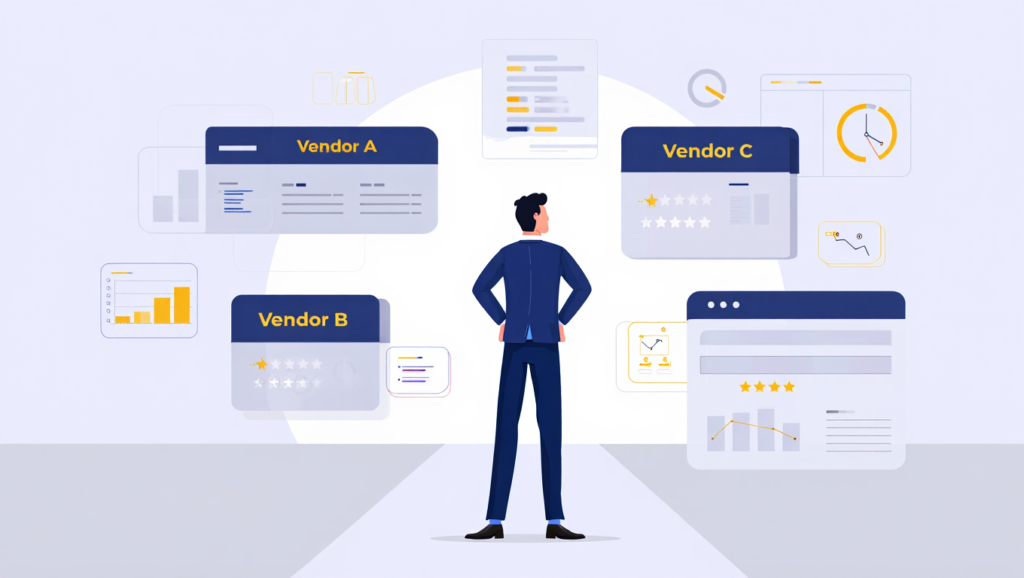
Choosing the right provider is one of the most practical decisions you’ll make. Here are the criteria that matter most.
Must Have Features
- Automated scheduled backups
- File versioning and point in time restore
- AES 256-bit encryption at rest and in transit
- Bare metal restore capability (restore an entire system)
- Mobile app for monitoring and access
- Clear restore testing procedures
- Compliance support if you need HIPAA, GDPR, or SOC 2
Questions to Ask Every Provider
- Where are your data centers located?
- How many copies of my data do you store?
- What is your guaranteed uptime and SLA?
- How do you handle a security breach?
- Can I export all my data if I cancel?
- What is your restore speed for large data sets?
- Do you offer a free trial?
Top Cloud Backup Providers Compared
| Provider | Best For | Starting Price | Free Trial | Notable Feature |
|---|---|---|---|---|
| Backblaze Business | Small teams and solopreneurs | $7/month per computer | Yes | Unlimited storage per device |
| Acronis Cyber Protect | All in one backup and security | $85/year | Yes | Built in antivirus |
| Veeam | SaaS and virtual environments | Custom pricing | Yes | Granular SaaS restore |
| Carbonite | Small to medium businesses | $24/month | Yes | Automatic cloud backup |
| IDrive | Families and small businesses | $99.50/year for 5TB | Yes | Multiple device support |
| Azure Backup | Microsoft ecosystem users | Pay per use | Yes | Native Microsoft integration |
| AWS Backup | AWS infrastructure users | Pay per use | Yes | Deep AWS integration |
Pricing Models and Storage Limits Explained
Cloud backup pricing can feel confusing at first. Here are the main models you’ll encounter.
Per Device Pricing
You pay a flat fee per computer or server you’re backing up. Backblaze charges $7 per month per computer and includes unlimited storage. This is great for small teams with a handful of machines.
Per GB or Per TB Pricing
You pay based on how much data you store. AWS and Azure both use this model. It can be very affordable at small scales but adds up quickly if you’re storing terabytes of data.
Tiered Storage Plans
Many providers offer fixed storage tiers, for example 500GB, 2TB, or 5TB, at different price points. IDrive and Carbonite use this approach. You pick the plan that fits your data volume.
SaaS App User Based Pricing
For SaaS backup specifically, pricing is often per user per month. Datto SaaS Protection charges per seat for Microsoft 365 or Google Workspace users.
What Drives Your Storage Needs
- Total size of files on your computers and servers
- Number of file versions you want to keep
- Retention period (how far back you want to be able to restore)
- Whether you’re backing up databases and applications vs just files
- Growth rate of your data over time
A simple calculation for most small businesses is to take your current total data size, multiply by 3 to account for multiple versions and growth, and use that as your minimum storage requirement.
Real World Example of a Small Business Using Cloud Data Backup
Let me share the story of a friend who runs a 12 person marketing agency. She had been storing everything on a shared NAS drive in the office for years. No offsite backup. No cloud storage backup. Just one physical device holding everything.
In early 2022, a power surge fried the NAS device over a long weekend. They arrived Monday morning to a completely dead storage system. Years of client files, campaign assets, project documentation, and financial records were gone.
They hired a data recovery firm who managed to retrieve about 60% of the data after two weeks and a $6,000 invoice.
After that experience, she set up a layered backup system.
What she implemented
- Acronis Cyber Protect for full system backups on all 12 workstations
- Spanning for Microsoft 365 backup covering email, SharePoint, and Teams
- A NAS device in the office as a local quick restore option
- Automated daily backups with 90 day versioning retention
- Monthly restore tests to confirm backups are actually working
Her total monthly cost is about $180. She told me she sleeps better now, and that is worth every dollar.
The Lesson for Other Small Business Owners
Waiting until after a disaster to set up cloud data backup is one of the most expensive decisions you can make. Prevention is always cheaper than recovery.
Step by Step Checklist to Get Started With Cloud Data Backup
Here is a practical checklist you can follow today to get a basic backup system in place.
Phase 1: Assess What You Have
- List every device that stores business data (computers, phones, servers)
- Estimate the total size of your current data in gigabytes or terabytes
- Identify your SaaS applications that hold critical business data
- Note any compliance requirements your industry has (HIPAA, GDPR, PCI)
Phase 2: Choose Your Backup Strategy
- Decide how often you need backups (hourly, daily, weekly)
- Decide how long you need to keep old versions (30 days, 90 days, 1 year)
- Decide if you need bare metal restore capability
- Decide if you want local backup plus cloud backup (recommended)
Phase 3: Select and Set Up Your Provider
- Compare at least 3 providers using the criteria listed above
- Sign up for a free trial before committing
- Install the backup agent on all devices
- Configure what folders and data types to include
- Set your backup schedule
- Confirm encryption settings are enabled
Phase 4: Protect Your SaaS Applications
- Identify which SaaS apps hold irreplaceable data
- Research dedicated SaaS backup tools for those apps
- Set up SaaS backup for Microsoft 365 or Google Workspace if applicable
- Test a sample restore to confirm it works
Phase 5: Test and Monitor
- Run your first manual backup and verify it completes
- Do a test restore of at least 5 files from different folders
- Set up email alerts for backup failures
- Schedule a restore test every 90 days on your calendar
- Review your backup logs monthly
Common Mistakes to Avoid
- Setting up backup and never testing restore
- Forgetting to add new devices when you buy them
- Not increasing your storage plan as your data grows
- Assuming SaaS applications are automatically backed up
- Using the same password for backup accounts as other accounts
- Relying on only one backup method
Advanced Topics Worth Knowing About
Immutable Backups
Some cloud backup providers offer immutable storage, meaning once a backup is written, it cannot be modified or deleted for a set period. This is a powerful protection against ransomware attacks that try to encrypt or destroy your backups along with your live data. Ask any provider you’re considering if they support immutable backup storage.
Backup Retention Policies
Retention policies define how long your backup data is kept. Longer retention means more storage costs but more flexibility to restore from further back in time. A good starting point for most small businesses is 30 day versioning, meaning you can restore any version of any file from the last 30 days. For important financial or legal records, 1 year or longer is worth considering.
Air Gapped Backups
An air gapped backup is one that is completely disconnected from any live network. It’s the ultimate protection against ransomware and cyberattacks. Large enterprises maintain air gapped tape backups for their most sensitive data. For small businesses, using a cloud provider with immutable storage is a practical alternative that gives similar protection.
Recovery Time Objective and Recovery Point Objective
These are terms you’ll hear if you start working with IT consultants or managed service providers.
Recovery Time Objective (RTO) is how quickly you need to be back up and running after a disaster. If you can’t be down for more than 4 hours, your backup system needs to support fast restore.
Recovery Point Objective (RPO) is how much data loss you can tolerate. If you back up once per day, your worst case RPO is 24 hours of lost data. If that’s not acceptable for your business, you need more frequent backups.
Managed Backup Services
If setting all of this up feels overwhelming, managed backup services are worth considering. You pay a monthly fee to an IT provider who sets up, monitors, and manages your entire backup infrastructure. Many managed service providers (MSPs) include backup management as part of their service packages. CompTIA has a directory of MSPs if you want to find local providers.
Understanding Compliance and Cloud Data Backup
If your business operates in certain industries, backup is not just a good idea. It is a legal requirement.
Industries With Backup Related Compliance Requirements
| Industry | Regulation | Backup Related Requirement |
|---|---|---|
| Healthcare | HIPAA | Data must be backed up and retrievable, encryption required |
| Finance | SOX, GLBA | Financial records must be retained for set periods |
| Payment processing | PCI DSS | Cardholder data environments must have tested backups |
| EU businesses | GDPR | Data must be protected from loss and breach |
| Legal firms | State bar rules | Client files must be retained per jurisdiction rules |
Always consult with a compliance professional or attorney if you’re unsure what applies to your business. Getting this wrong can result in serious fines.
The True Cost of Not Having Cloud Data Backup
Let’s put some numbers on this.
According to IBM’s Cost of a Data Breach Report 2023, the average cost of a data breach for a small business is over $150,000. That includes forensic investigation, customer notification, lost business, and remediation.
The average cost of a ransomware recovery for a small business without backups, according to Coveware’s Q4 2023 Ransomware Report, is over $500,000 when you factor in downtime, ransom payments, and recovery costs.
Compare that to the $20 to $200 per month that a solid cloud data backup system costs.
Return on Investment for Cloud Backup
| Cost | Amount |
|---|---|
| Monthly cloud backup cost (typical small business) | $50 to $150/month |
| Annual cloud backup cost | $600 to $1,800/year |
| Average cost of ransomware recovery without backup | $500,000+ |
| Average cost of recovering from hardware failure without backup | $5,000 to $50,000 |
| Break even on backup investment | Less than 1 week of prevented downtime |
The math is straightforward. Cloud data backup pays for itself the first time you need it.
Frequently Asked Questions About Cloud Data Backup
How long does the first backup take?
The first backup is always the slowest. It has to upload everything from scratch. Depending on your internet speed and data size, it can take anywhere from a few hours to several days. After that, backups only upload changed data, which is much faster.
What happens if I lose internet access?
Most backup clients queue the backup and complete it when your connection is restored. Your data stays protected locally in the meantime.
Can I access my backed up files from any computer?
Yes. Most cloud backup services have web portals and mobile apps that let you access and restore files from any device with internet access.
Is cloud backup safe for sensitive business information?
Yes, when you choose a reputable provider with strong encryption. Look for SOC 2 Type II certified providers, which means they have undergone third party security audits.
What if my backup provider goes out of business?
This is a real concern. Choose established providers and always download a local copy of your most important files periodically. Read your provider’s data export policy before signing up.
How do I know my backups are actually working?
Test them. Run a restore drill every 90 days. Many businesses discover their backups have been silently failing for months when they actually need them.
Your action for today is simple. Pick one device in your business that holds important data, sign up for a free trial with Backblaze or Acronis, and get your first cloud data backup running before you close your laptop tonight. That one step puts you miles ahead of most small business owners, and it could save your business someday.